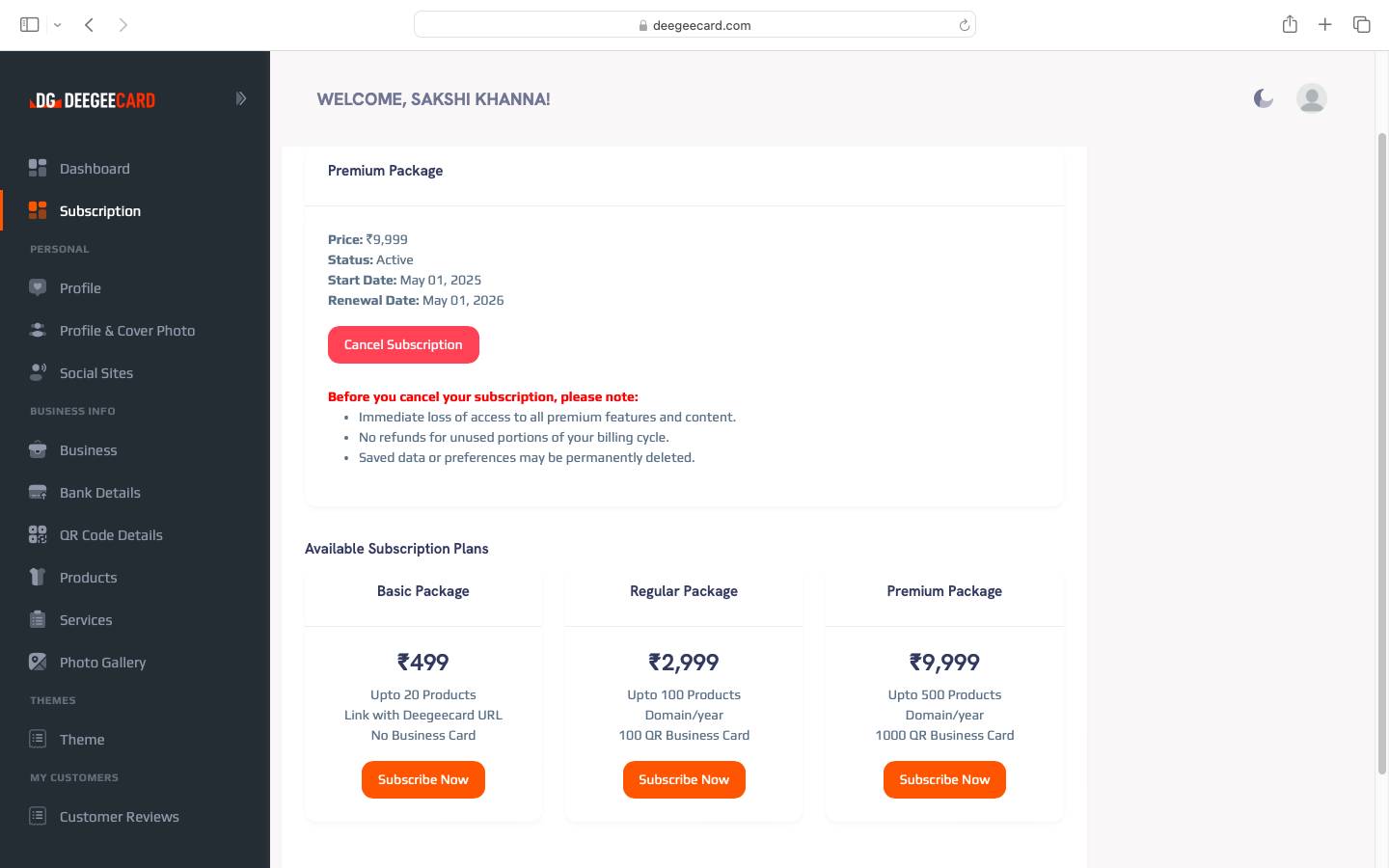
How to Register
To create a new Deegeecard account:
- Visit www.deegeecard.com and click on "Register"
- Enter your email address and create a strong password
- Provide your basic information (name, phone number)
- Verify your email address by clicking the link sent to your inbox
- Complete your profile setup by following the onboarding steps
- Agree to the terms of service and privacy policy
- Click "Start Free Trial" and Create account to finish registration
Note: You must be at least 13 years old to create an account.
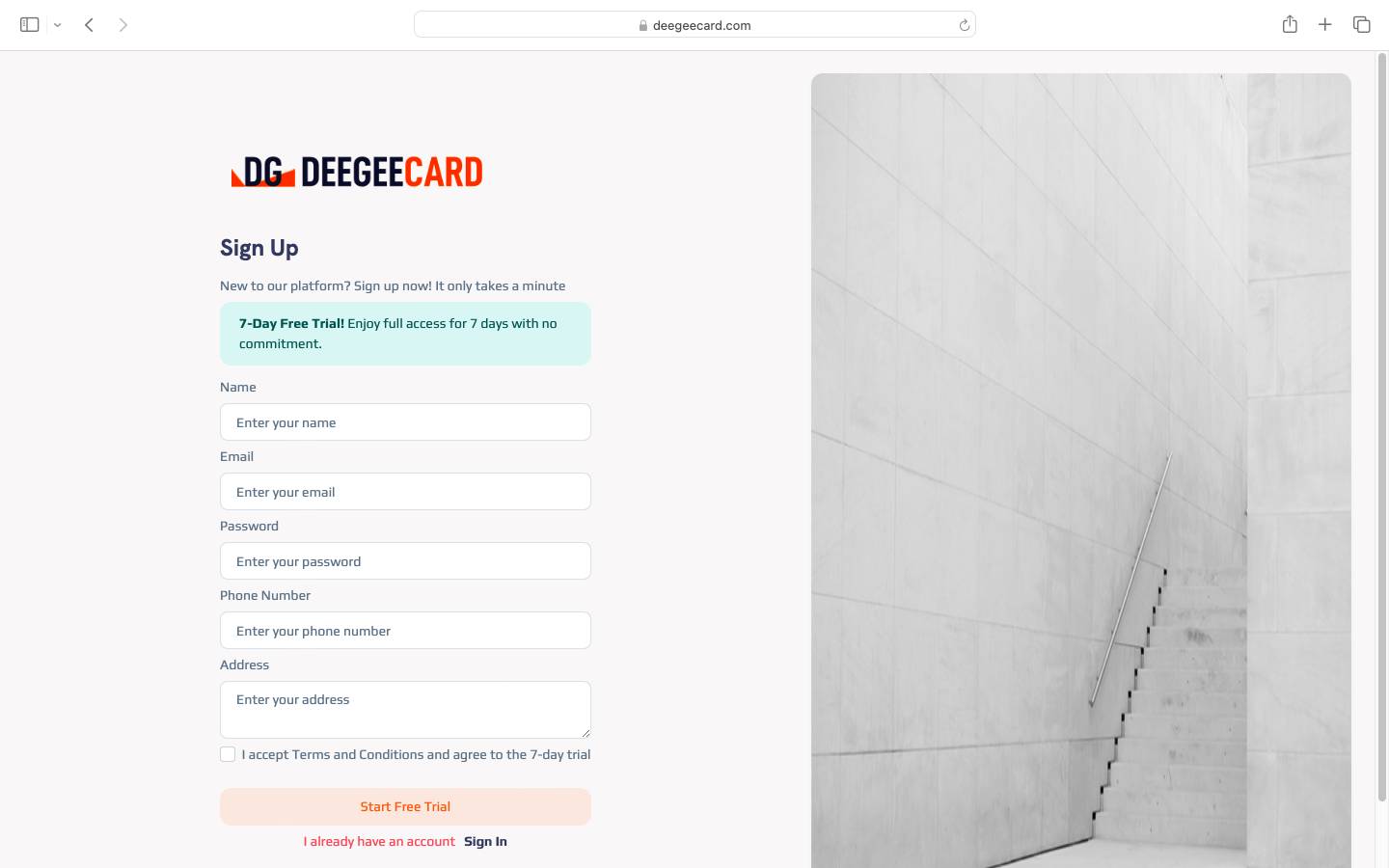
How to Login
To access your Deegeecard account:
- Go to deegeecard.com and click "Login"
- Enter your registered email address
- Type your password (case sensitive)
- Optionally check "Remember Me" to stay logged in on your device
- Click the "Login" button
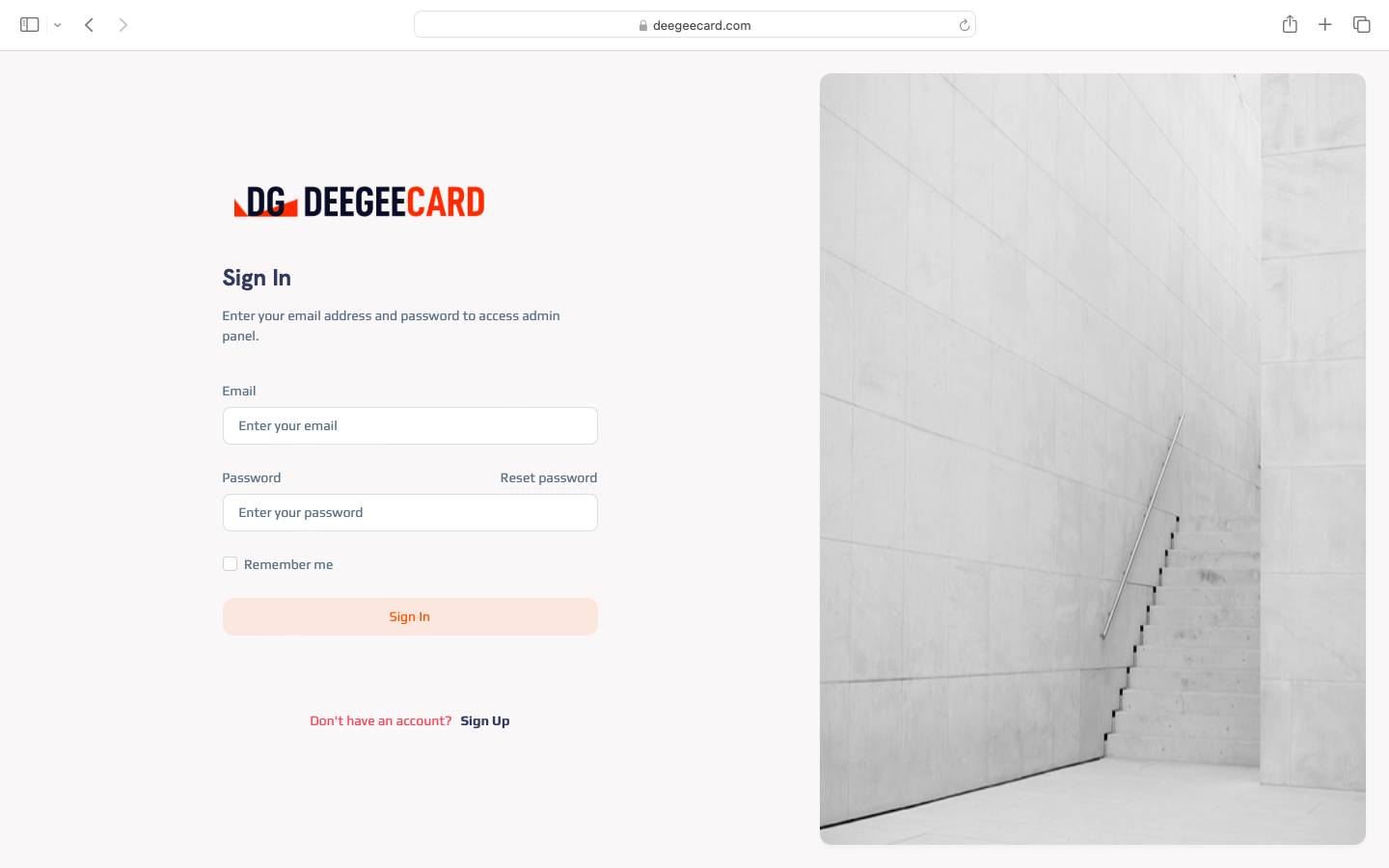
How to create profile URL
To create your profile URL:
- Log in to your Deegeecard account
- Go to Dashboard
- Click on 'Customize URL' option
- Enter your preferred username (e.g., yourname)
- Check availability and save your changes
- Your profile URL will be: deegeecard.com/yourname or deegeecard.com/companyname
Note: Profile URLs must be unique and can only contain letters, numbers, and hyphens.
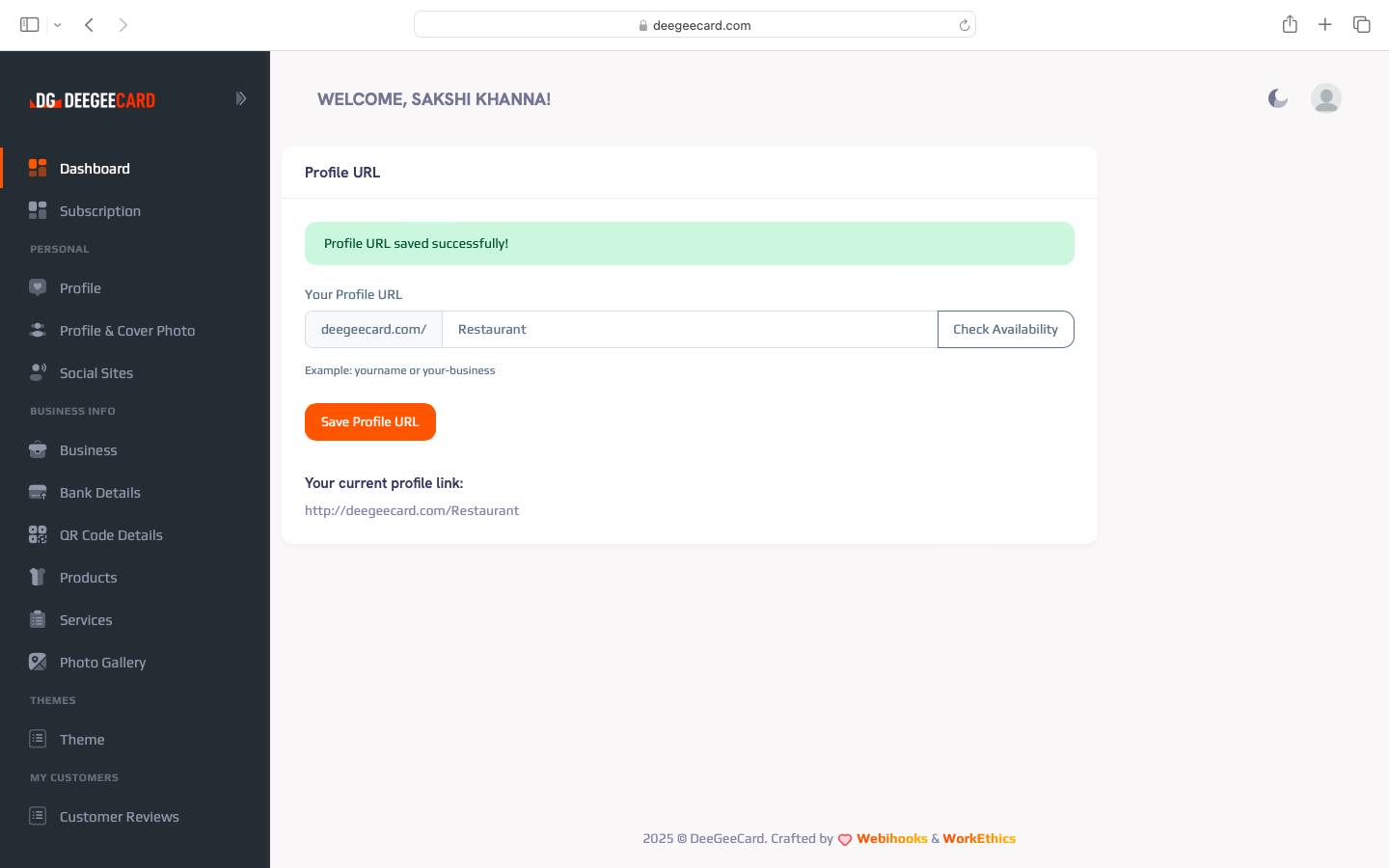
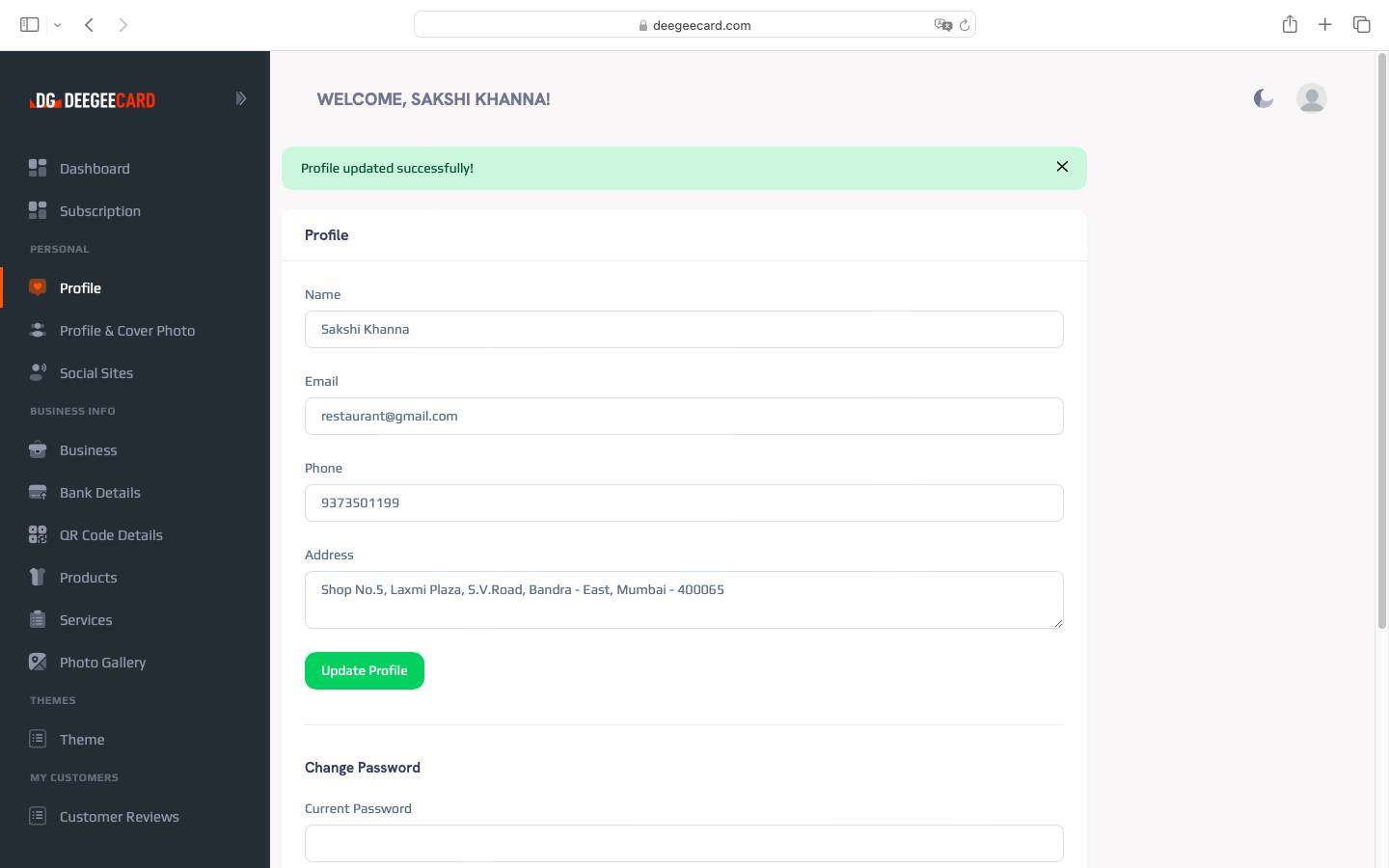
How to add Profile details
To add your profile details:
- Navigate to 'My Profile' in your account
- Click on 'Edit Profile' button
- Fill in your personal information (name, profession, etc.)
- Add a short bio in the description section
- Include your contact information
- Click 'Save' to update your profile
Tip: Complete profiles get more engagement, so provide as much relevant information as possible.
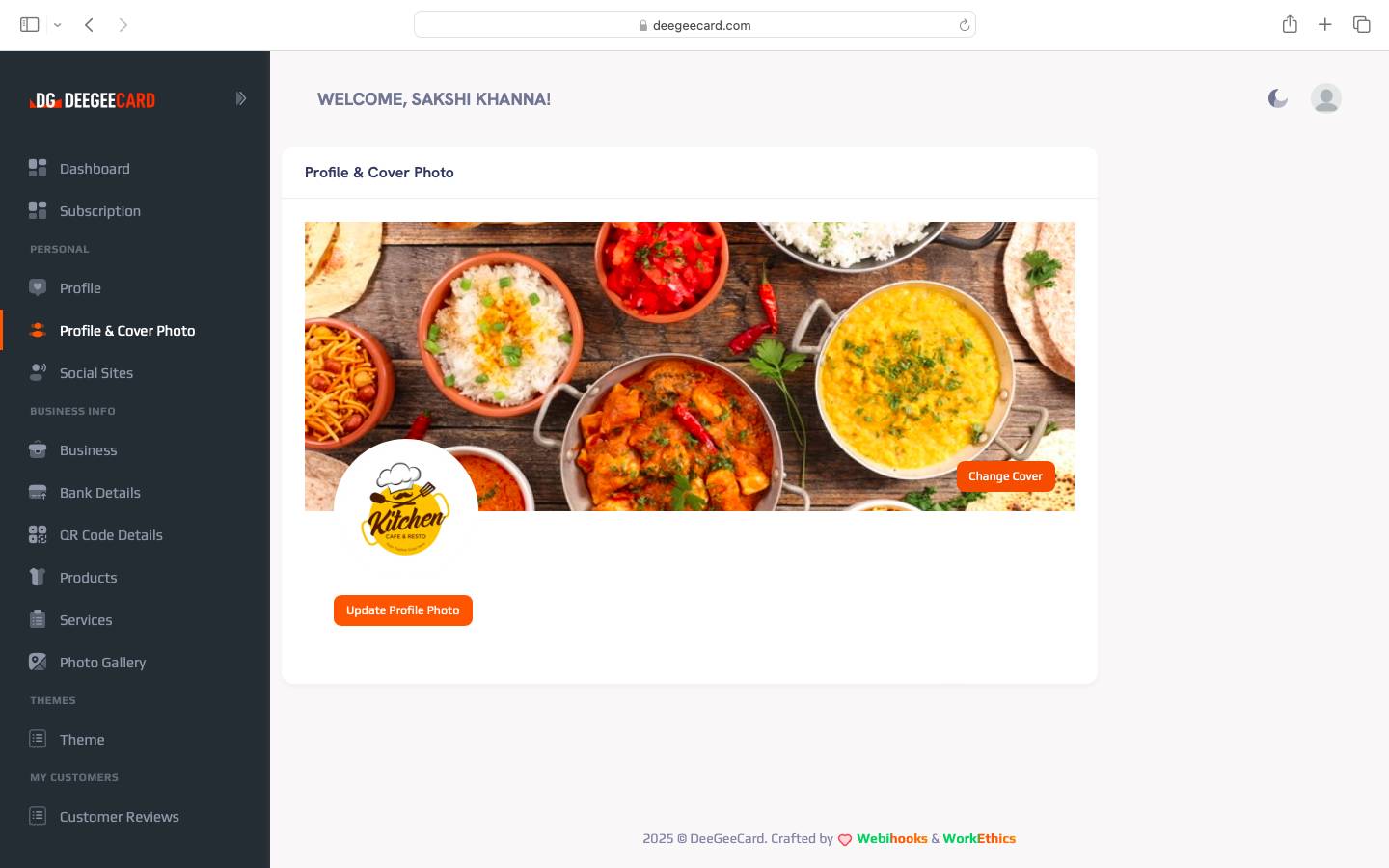
How to add Profile & Cover Photo
To add or change your profile and cover photos:
- Go to 'Profile & Cover Photo'
- Click on the camera icon on your profile picture
- Upload a square image (recommended 500x500 pixels)
- For cover photo, click the camera icon on the cover area
- Upload a wide image (recommended 1500x500 pixels)
- Adjust the cropping as needed and save
Note: Use high-quality images for best results.
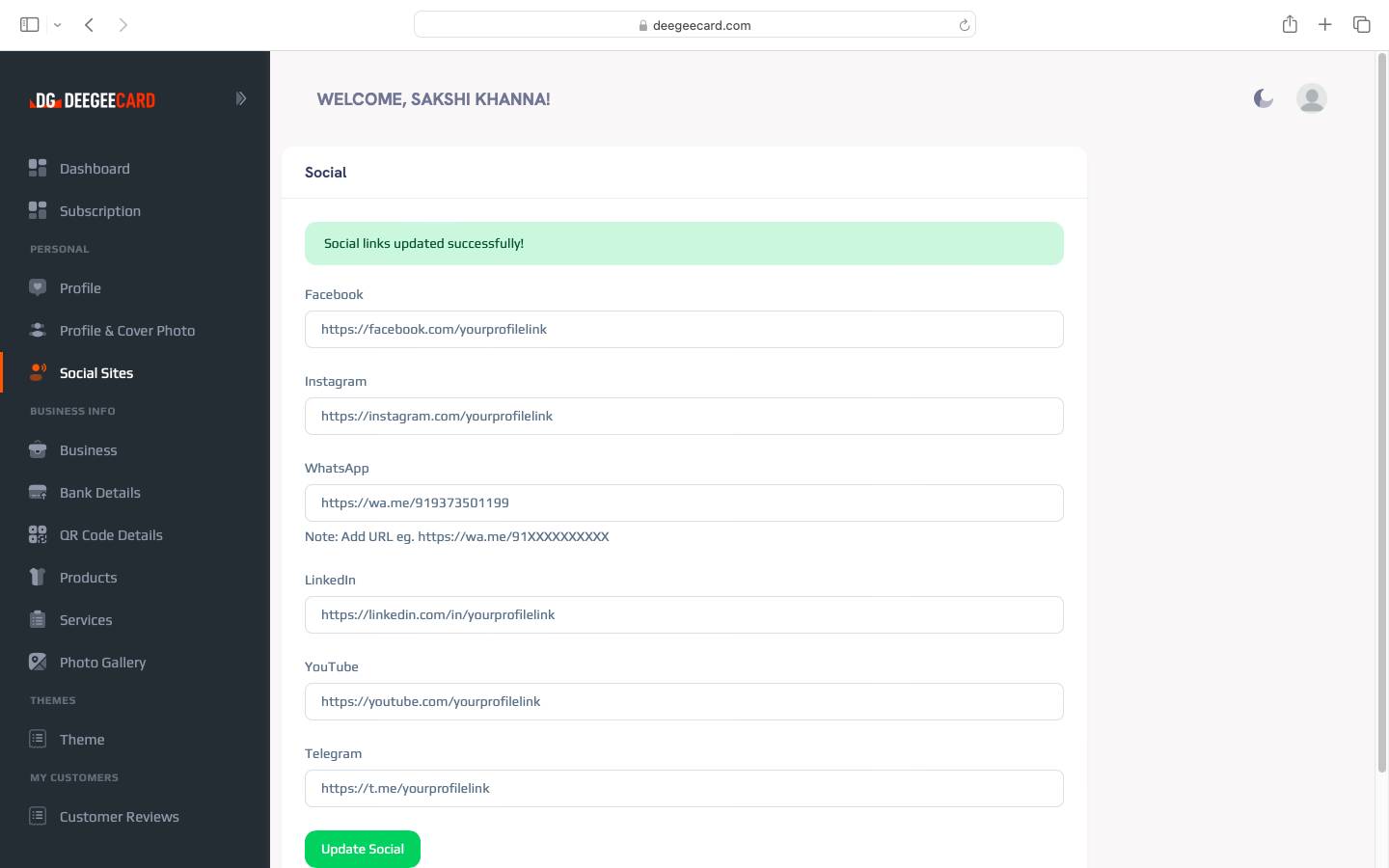
How to add Social Sites links
To connect your social media profiles:
- Access 'Social Links' from your profile settings
- Click 'Add Social Media' button
- Select the platform from the dropdown menu
- Paste your profile URL in the field provided
- Repeat for all social platforms you want to add
- Arrange the order using drag and drop
- Save your changes
Supported platforms: Facebook, Instagram, Twitter, LinkedIn, YouTube, and more.
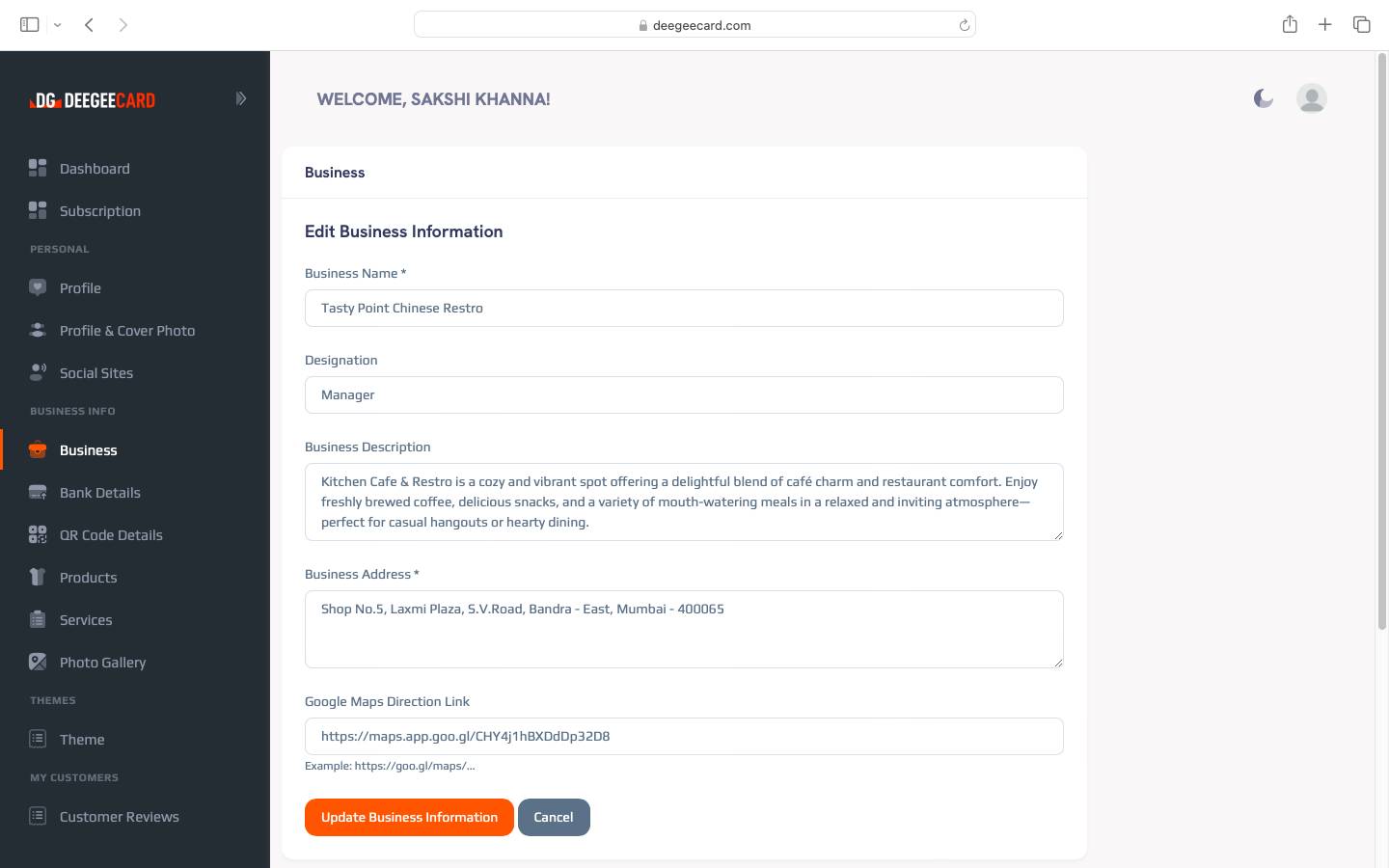
How to add Business Details
To add your business information:
- Go to 'Business' tab
- Fill in your business name and description
- Add your business address and location
- Include business hours and contact information
- Save your business profile
Tip: Complete business profiles appear higher in search results.
How to add Bank & QR Code Details
To set up payment information:
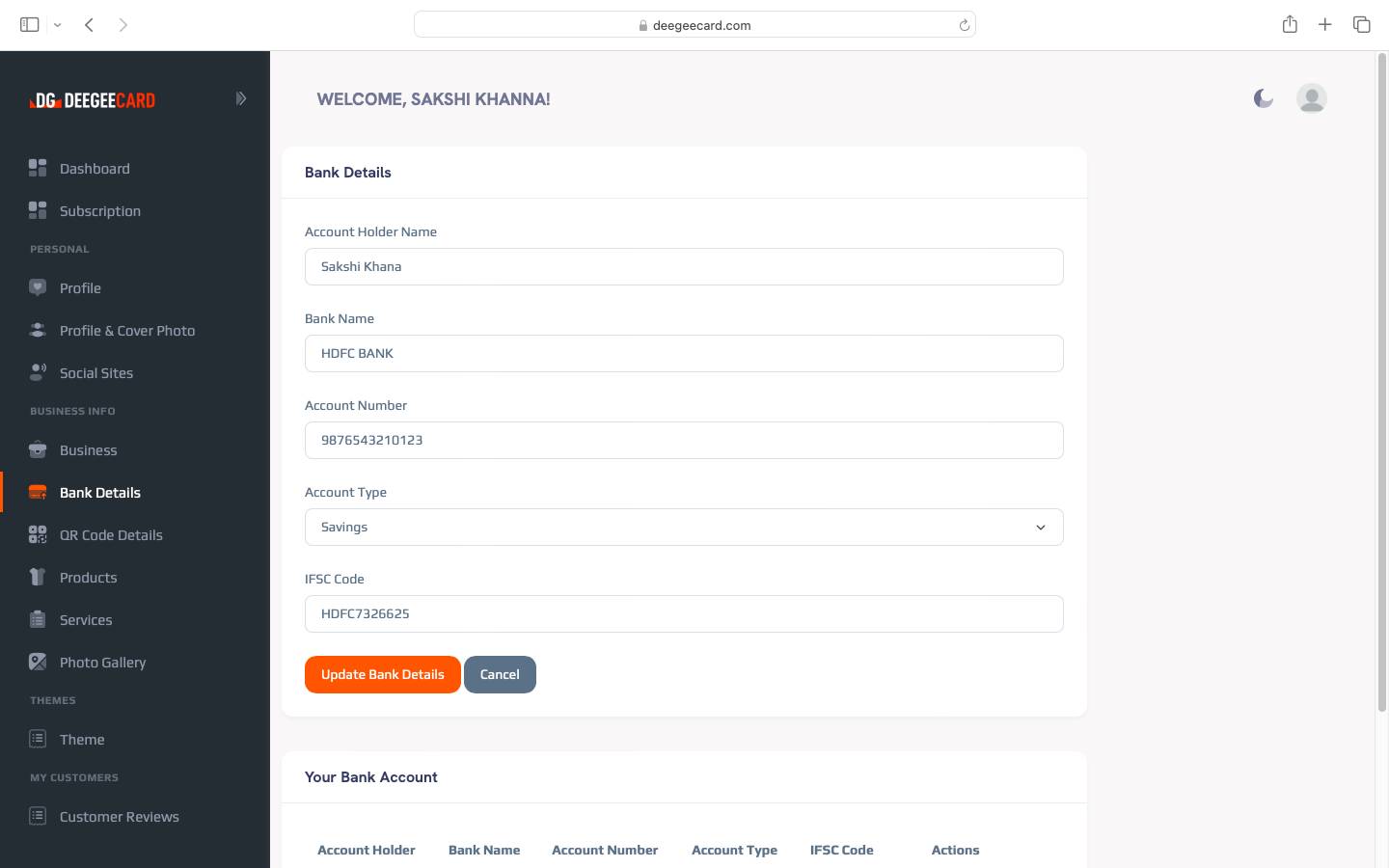
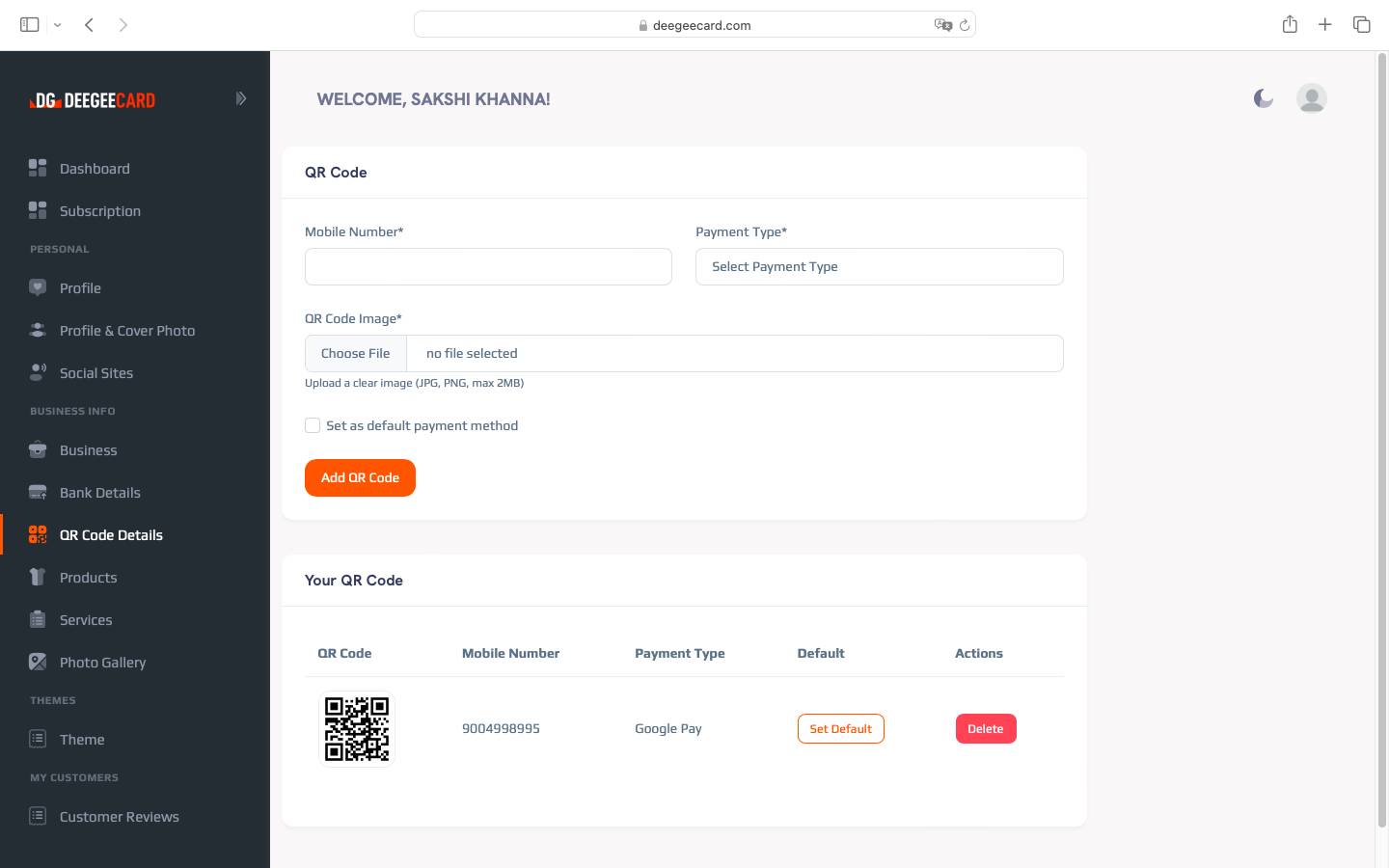
- Navigate to 'Bank Details' tab or 'QR Code Details' tab
- Select 'Bank Account' tab
- Enter your bank account details (account name, number, IFSC)
- For QR Code, go to 'Digital Payments' tab
- Upload your UPI QR code image
- Or generate a Deegeecard QR code if you don't have one
- Set default payment method and save
Note: Bank details are encrypted and stored securely.
How to add Products or Services
To showcase your offerings:
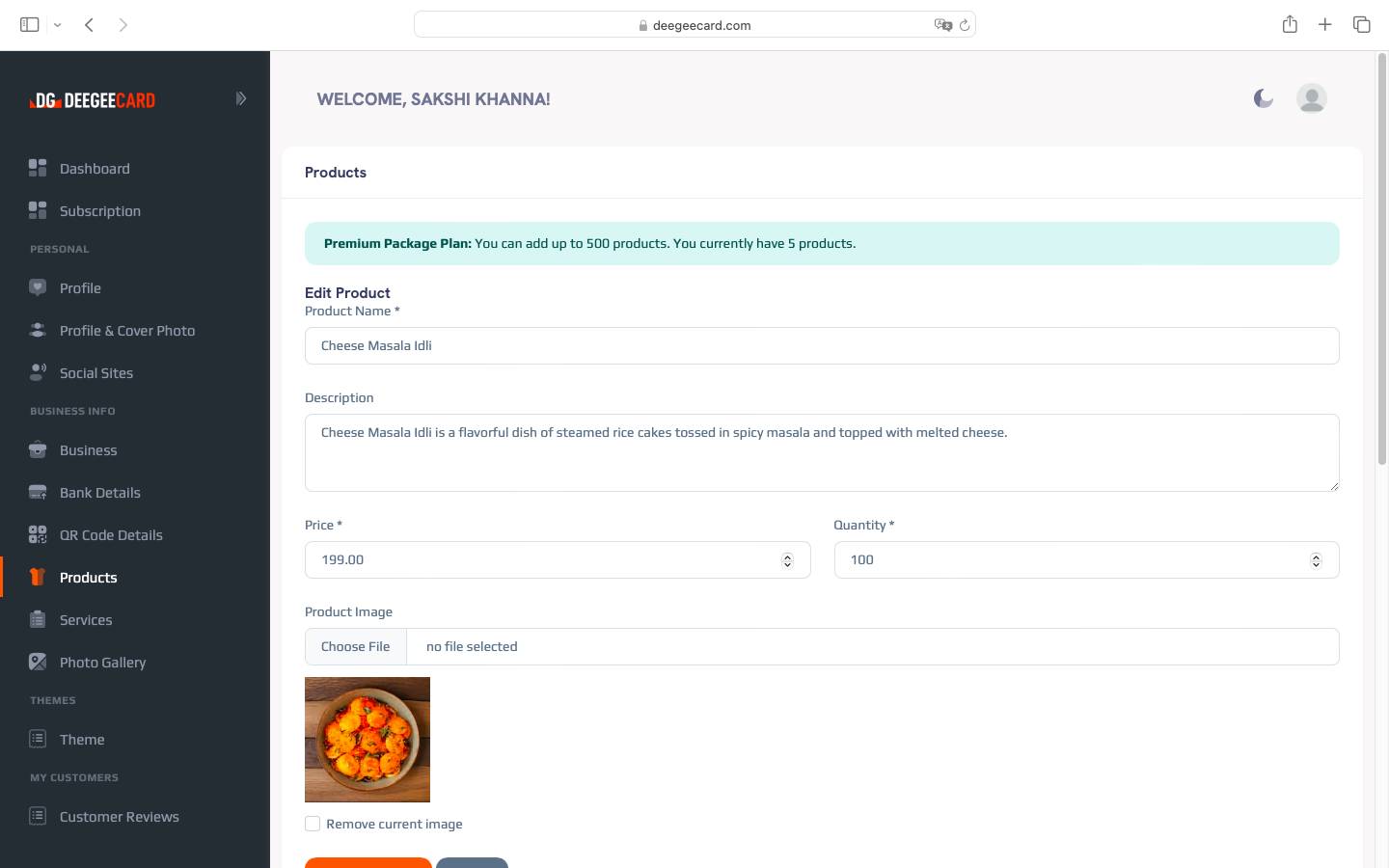
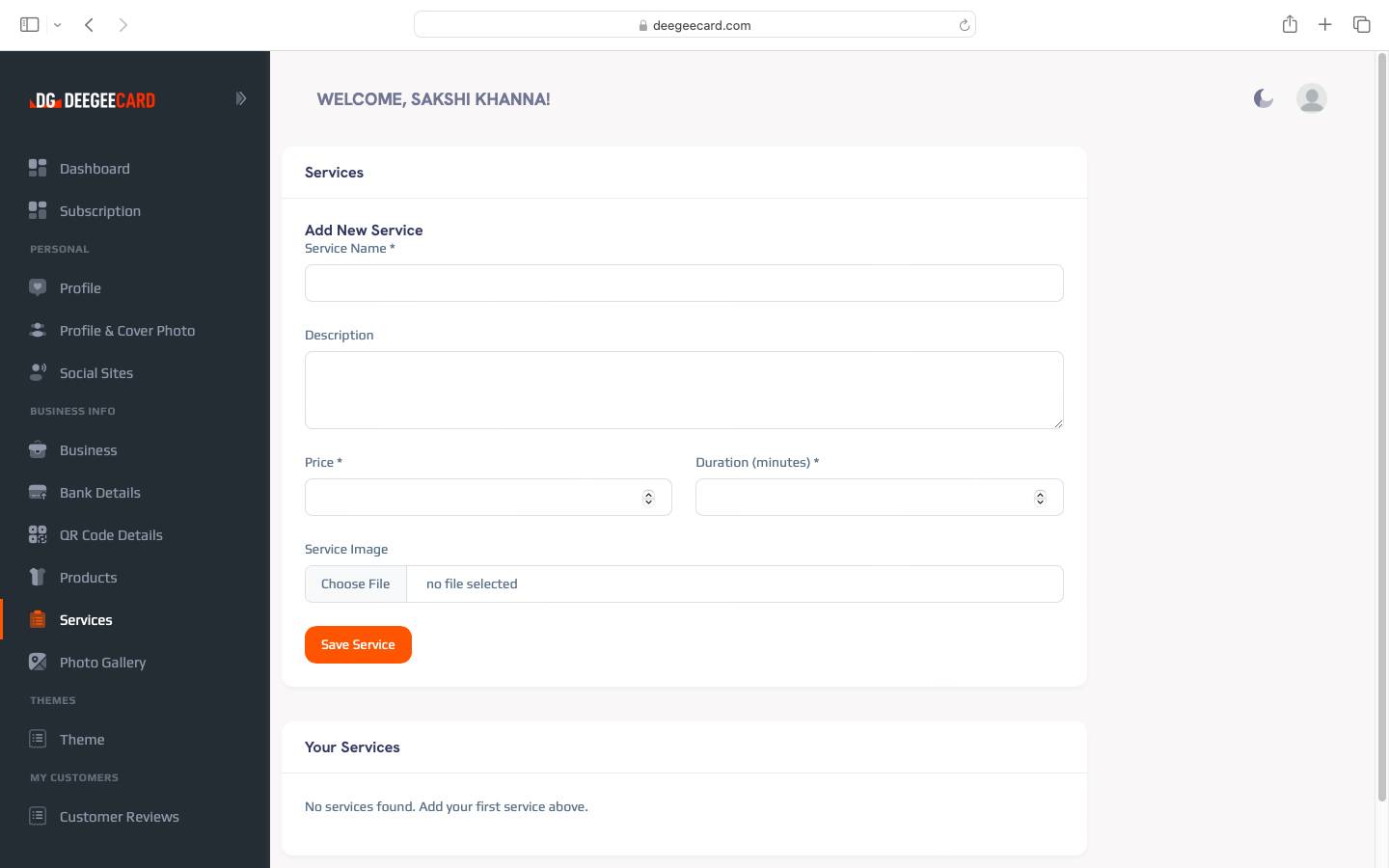
- Click on 'Products/Services' in your dashboard
- Select 'Add New Item'
- Choose whether it's a product or service
- Add title, description, and pricing
- Upload product images or service icon
- Set categories and tags for better discovery
- Specify availability and other details
- Save and publish your item
Tip: Add at least 3 high-quality images for each product.
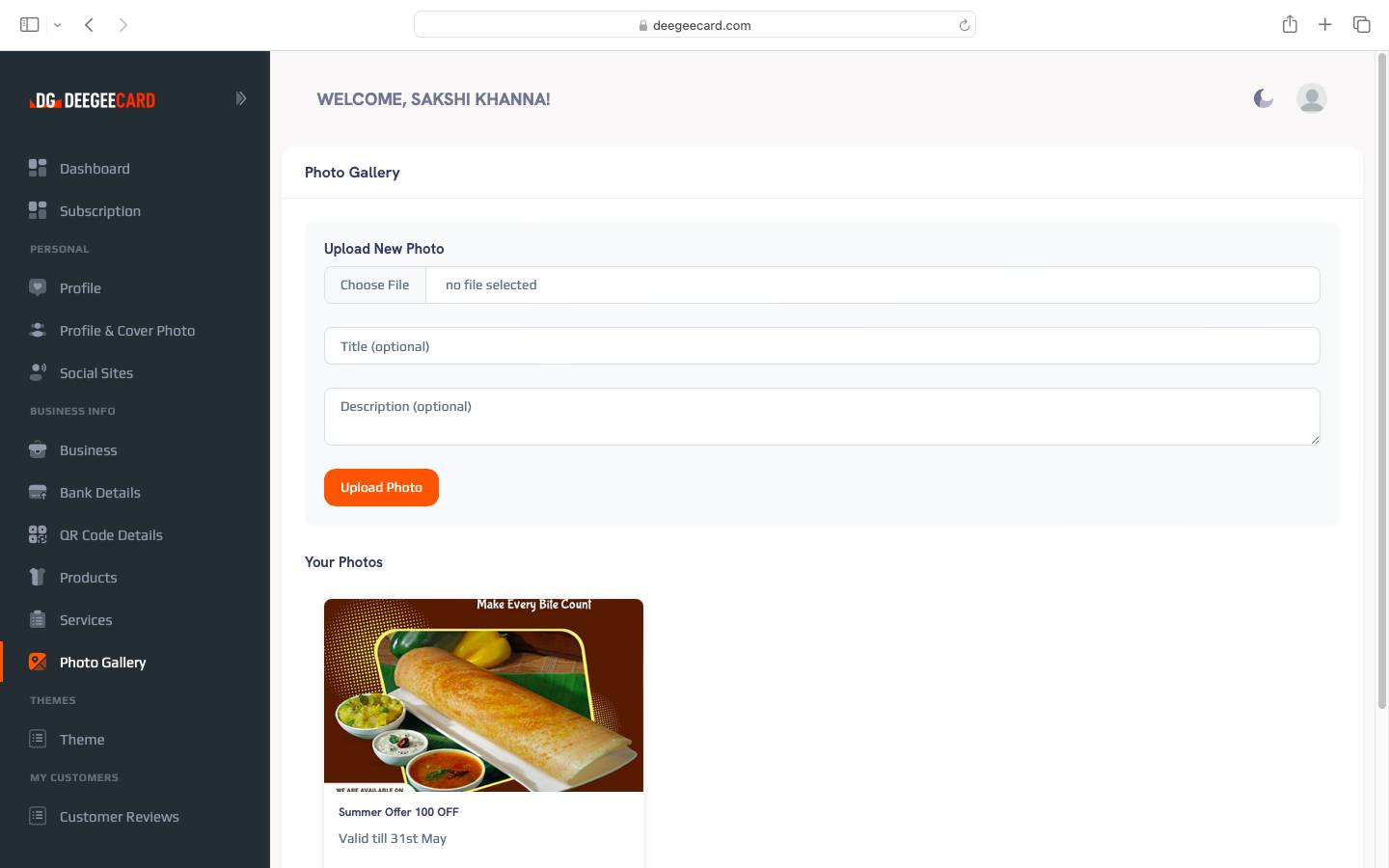
How to add Photo Gallery
To create your photo gallery:
- Go to 'Photo Gallery' section in your profile
- Click 'Add Photos' button
- Add titles and descriptions for each photo
- Save your gallery
How to Change Color Theme
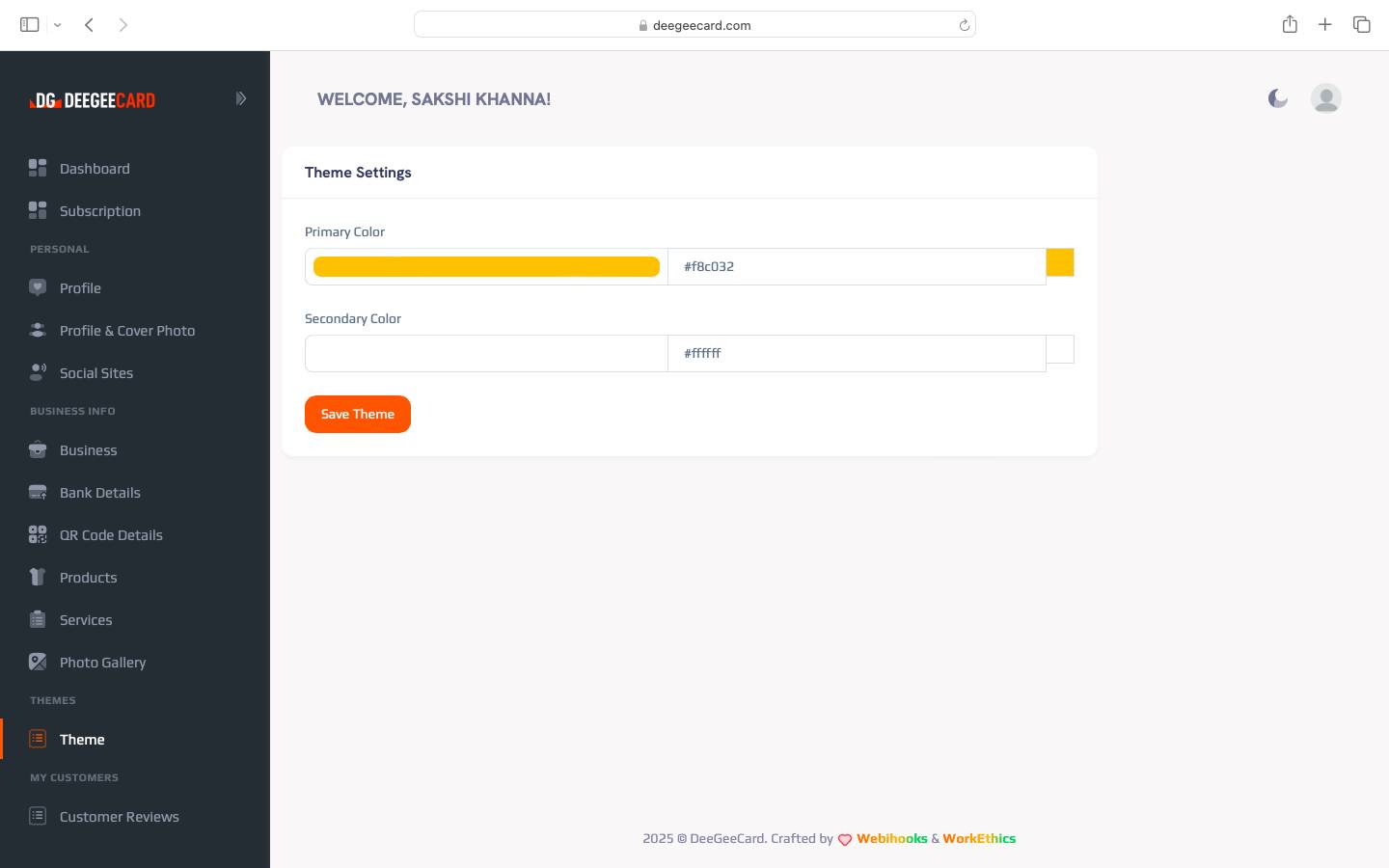
To customize your profile appearance:
- Goto 'Theme' tab
- Select 'Color Theme' tab
- Choose from preset color schemes
- Or create custom colors using the color picker
- Save your theme when satisfied
- Optionally set different themes for different seasons
Tip: Use colors that match your brand identity.
How to Check Customer Reviews
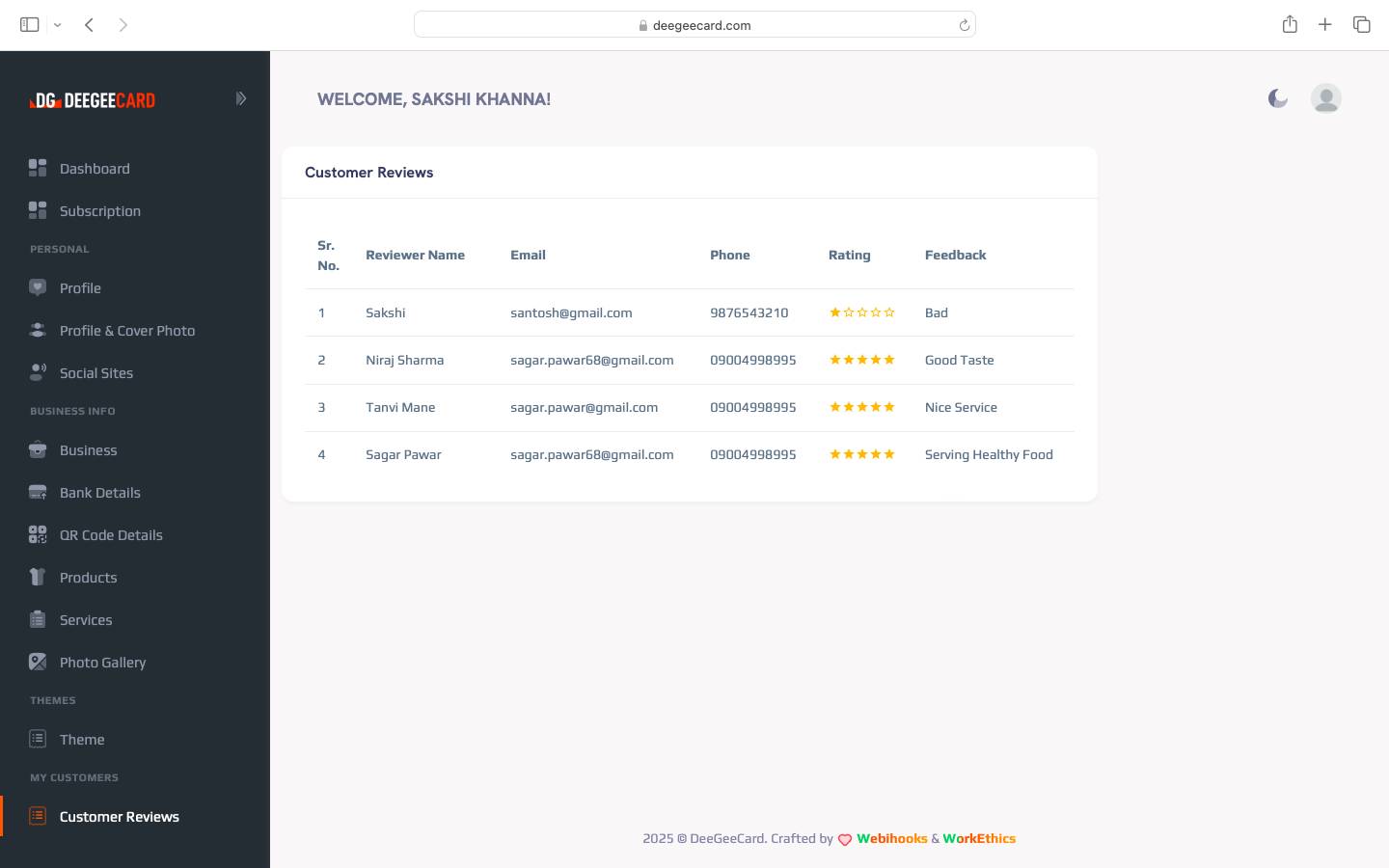
To view and manage your reviews:
- Go to 'Customer Reviews' section in your dashboard
- View all received reviews with ratings
- Filter reviews by date or rating
- Read detailed feedback from customers
- Check your average rating and total reviews
How to get Subscription
To subscribe to Deegeecard premium features:
- Log in to your Deegeecard account
- Go to the 'Subscription' section in your dashboard
- Choose your preferred subscription plan (Monthly/Yearly)
- Review the features included in each plan
- Click 'Select Plan' for your chosen subscription
- Enter your payment details (credit card, debit card, or UPI)
- Confirm your subscription
- You'll receive a confirmation email with your subscription details
Note: Your subscription will automatically renew unless canceled before the renewal date.
Tip: Yearly subscriptions offer significant savings compared to monthly plans.